
 System Requirements
Secret! Desktop runs on all Windows versions. You can use it as a standalone program, or you can synchronize the data with a handheld running Secret! Android.
Secret! Android synchronizes via WiFi, so you need a WiFi connection between your PC and the mobile device.
See version history at the end of this page.
Installation And Upgrade
Download and run the self-extracting setup. The setup will automatically install Secret! Desktop and synchronization software (if applicable).
If you want to synchronize with a handheld, first install Secret! on the handheld, open it on the handheld (so that a new database is created), then synchronize with your PC.
When you switch mobile devices or platforms, first set up the synchronization with the new device as described above, then use File - Import - <Data Source> to import data of the old device.
You should always install newer versions of Secret! Desktop into the original directory, without removing the previous installation. Your data and settings will be preserved. Note: if you upgrade to a new major version (e.g. from 5.x to 6.x) you need to purchase an upgrade.
You can run a registered Secret! Desktop from a USB stick. Just select Tools - Copy to USB drive. This will copy the program, data file and all settings to the selected folder. If you start Secret! from this location, it will not touch anything on the host computer.
 How To Use Secret! Desktop
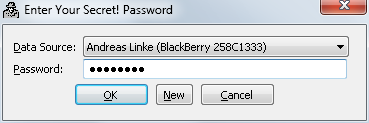
When you start Secret! Desktop, you must first enter your Secret! password. This is the same password that you use to encrypt your Secret! data on your handheld. It is not the registration key.
If you have multiple users or handhelds, please make sure to select the correct data source from the dropdown list.
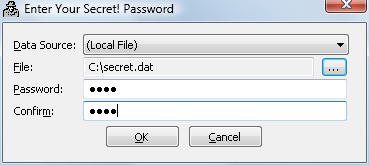 You can create a new local Secret! data file or work with an existing file by selecting (Local File) from the data source dropdown. The last used file/data source is remembered.
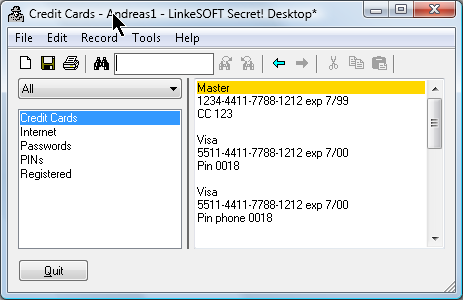
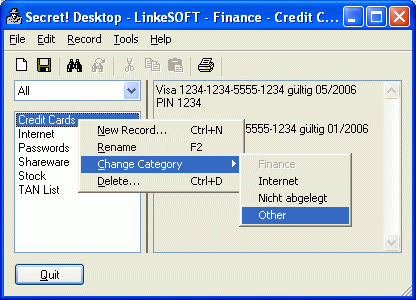 In the left part of the main window you will see a category dropdown and the list of the Secret! records in the selected category. This list is sorted in alphabetical order. To the right you can view and edit the currently selected record. You can set a different text font in the Tools - Options dialog.
Through the Record menu, you can mark a record as read-only to prevent accidental changes. Read-only mode is indicated by a gray background.
The Secret! Desktop window can be resized to adjust for the best view. You can also adjust the width of the text area by dragging the black line in the middle of the window.
Most functions are available through the Record menu. You can add, rename, or delete records, or print a single record or all records. The standard popup menu (right mouse click) for cut/copy/paste is available in the right-hand text window.
Tip: You can quickly close Secret! Desktop at any time by pressing the ESC key. All changes will be automatically encrypted and saved.
 Multiple Passwords
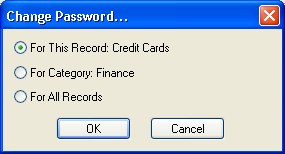
You can encrypt different records with different passwords. This can be useful if you want to protect some especially important records with an extra-long and complicated password, or if you want to share some information with others using a general password.
Records that cannot be decrypted with the current password(s) will be marked with a hash sign (#) in the list. When you select such a record, Secret! Desktop will ask you for the password for that record. All passwords that you enter while you use Secret! Desktop are saved internally, so you do not need to enter them twice.
To change the password for one record, all records in a given category, or all records, select File - Change Password.
Note that changing the password for multiple records will only work for those records that can currently be decrypted (i.e. are not marked with a hash sign). The same applies to exporting of records.
 Options
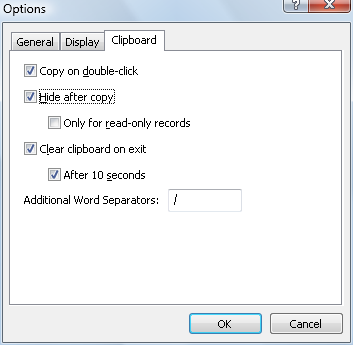
You can configure various options to increase security or usability by selecting Tools - Options from the menu.
To get more help about a configuration option, click on the little question mark (?) button in the title bar, then on the option in question.
A particularly useful option is Hide after copy. This will automatically put Secret! Desktop into the background whenever you select and copy some text. The previously active program (e.g. a web browser) is put back to the foreground to let you easily enter the copied text into a form. To avoid problems with copy/pasting within Secret! records you can limit this option to work only for read-only records.
 Record Import/Export
You can import and export records encrypted with a different password. This is useful e.g. if you want to manually transfer data to a device, or send part of your Secret! data to someone else.
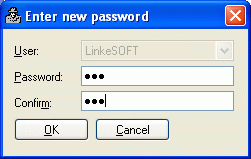
To export a single record suitable for import into another Secret! Desktop or Secret! handheld application, select Record - Export from the menu. You will be asked for a new password with which to encrypt the exported data. The data in Secret! Desktop will not be changed. To export all records in the currently displayed category, select File - Export from the menu and proceed as above.
To import an encrypted Secret! file, select File - Import from the menu. Note: You can only import files created by Secret Desktop or Secret! on the handheld. To import Secret! webOS data, connect the handheld via USB, and select Tools - Import Secret! webOS Data.
You can also import/export all records as unencrypted plain text in CSV (comma-separated values) or XLS (Excel) format for backup purposes. Please type the file name with extension (e.g. secret.csv) in the Save As dialog box. Be sure to store the unencrypted data in a safe place. Secret! Desktop can import SplashID CSV files. One record per SplashID entry will be created, containing all the information from the different fields.
Note that if you use multiple passwords, only records that can currently be decrypted will be exported (those not marked with a hash sign #).
TAN/OTP Mode
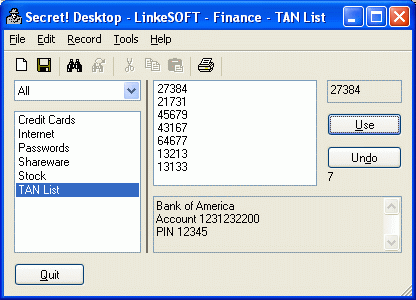 The TAN/OTP mode is useful when you use one-time passwords (OTPs) or transaction numbers (TANs) e.g. for online-banking. You can delete the respective first number of the TAN list by pushing the Use button. The TAN will be automatically copied into the Windows clipboard, so you can easily paste it into the browser form with Ctrl-V.
The number to the right of the TAN list shows the number of still available TANs.
You can store additional information for this TAN list, e.g. bank number and PIN or password, in the area below the list.
A new TAN list must be entered in standard mode (uncheck Record - TAN/OTP mode).
Backup
If you work most of the time with Secret! Desktop and not the handheld, it's a good idea to make extra backups of the Secret! Desktop data file. There's an option in Secret! Desktop to automatically create a backup of the original version whenever you change something. You can import such a backup via File - Import - File.
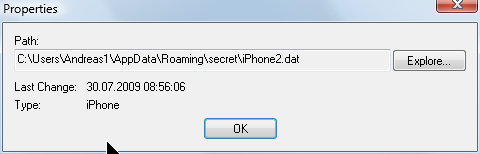 You can see the currently used file under File - Properties.
The name and location of this file depends on the device with which you synchronize.
If you synchronize with a Palm handheld, Secret! Desktop stores its data in a file secret.dat in the directory ...\palm\<Palm User Name>\secret (e.g. c:\program files\palm\LinkeS\secret\secret.dat)
If you synchronize with a Windows Mobile (Pocket PC) handheld, Secret! Desktop stores its data in a file <Partnership Name>-secret.dat (e.g. WM_HX2750-secret.dat) in the directory %AppData%\secret (which is usually c:\users\<Windows User Name>\AppData\secret or c:\users\<Windows User Name>\AppData\Roaming\secret on Vista).
Note: You can change this location in the Secret! ActiveSync/Windows Mobile Device Center settings.
If you synchronize with a BlackBerry handheld, Secret! Desktop stores its data in a file <PIN>-bb.dat (e.g. 258c1334-bb.dat) in the directory %AppData%\secret (which is usually c:\users\<Windows User Name>\AppData\secret or c:\users\<Windows User Name>\AppData\Roaming\secret on Vista).
License
Please purchase Secret! Desktop on our order page.
To register your copy of Secret! Desktop, enter your Secret! password, then click on the Register button on the main screen.
We offer attractive multi-user discounts and site licenses. Please contact us with the estimated number of users for details.
Note: The license keys for Secret! Desktop and Secret! (Handheld) are different.


Version History
- 6.5.4
- Can select arbitrary directory for backups
- larger toolbar on high-res displays - 6.5.3
- sync with Secret! Windows Phone
- small fixes - 6.5.2
- enable support for high-density displays
- fix: cursor for moving splitter between list and record was missing - 6.5.1
- fix: Desktop data file synchronized with Android did not always show up as Android data source - 6.5
- Extra Sync button for synchronizing with Android, iPhone and Palm webOS
- iPhone Sync: Advanced button for manually entering iPhone address if Bonjour is not working (with Secret! iPhone 1.1.9 and later)
- Triple click for selecting whole line
- Show last sync date in File - Properties
- Status bar shows # of changed records after sync and text of clipboard copy
- New high-res icons
- Fix for exporting in correct format if file extension was not explicitely - 6.4.1
- minor fixes - 6.4
- Checkbox for setting default sync direction (e.g. always Overwrite Handheld)
- Option to print records continuously without page breaks (checkbox on Print dialog)
- Fix for rare crashes on XP when synchronizing with webOS
- Minor fixes - 6.3
- Synchronization with Secret! Android and Secret! webOS
- Support for import of *.csv files exported with SplashID
- Allow selection of multiple records for remove or change category
- "New" button on password dialog for easier creation of new files
- Import of Secret! web OS database via USB (Tools - Import Secret! webOS Data)
- Drag-and-drop *.dat or *.pdb files onto the Password window
- Shortcuts in Password window: Ctrl-P/I/B/A/M/W/L selects the first Palm/iPhone/BlackBerry/Android/Windows Mobile/web OS or the Local File data source, resp.
- Better status information when trying to sync with Secret! iPhone
- Minor fixes - 6.2
- Support copy to USB also for Palm/PPC file formats
- File - Import - Data Source for easy import of other synchronized data
- File - Switch Data Source for easy switching between sychronized data
- Option to confirm saving changes when closing Secret! Desktop
- Show # of records and categories on File - Properties...
- Show local file name in window title
- BlackBerry sync fix for overwrite handheld and overwrite desktop
- BlackBerry sync option to select a different file path
- iPhone sync fix for overwrite handheld
- Minor fixes - 6.1
- Improved performance for large record collections
- Option to copy Secret! program, setttings, data to USB drive/folder
- Search record list in alphabetic order
- Easier setup for new data file for iPhone sync, just select Tools - Sync with iPhone, it will create new data file if necessary
- Support for Secret! BlackBerry
- Sync options (both-ways, overwrite desktop, overwrite handheld) for sync with iPhone or BlackBerry
- Export in *.dat format (for import in BlackBerry, or other Secret! Desktop 6.x installations)
- Fix for passwords exactly 15 chars long sync'ed with iPhone/BlackBerry
- Minor fixes - 6.0.1
- several bug fixes - 6.0
- Support for sync with Secret! for iPhone (via WLAN connection):
- Find as you type (similar to Firefox search)
- Redesign of Options dialog
- Option for defining additional word separators (for mark with double-click, e.g. slash /)
- Option for unlimited number of backups
- Unfiled category selection also for Windows Mobile and iPhone files. - 5.2
- File -> Properties shows path and last change date for currently used Secret! data file
- Option to set highlight color
- Option to make list font same as text font
- Minor fixes - 5.1.2
- Secret! Desktop warns if it cannot save changes - 5.1.1
- minor fixes - 5.1
- Option to keep up to 5 backups (one per day)
- Tools - Remove duplicates Edit button to easily edit entries from readonly/TAN mode
- Fix for WMDC 6.1 sync problem
- Fix: # of records in Secret! Desktop is no longer limited to 500 (only applied to Windows Mobile synchronized data)
- Various bug fixes - 5.0
- Support standalone usage: Create new data file and browse for data file
- Allow different passwords for records, e.g. a short one for general stuff, and a long and difficult one for extra secrecy
- Ability to link in an external (shared) file via command line option -l (see F1 help)
( Such a file can be created via Export... in pdb format, and can have an arbitrary password)
- Fix for resource problems or crashes on some machines
- Option to clear clipboard after 10 seconds
- Menu to number TANs automatically - 4.3
- Support for Windows Vista Mobile Device Center (aka ActiveSync)
- Online help files now compatible with Windows Vista
- Fixes for printing overlong lines and maintain order for printing all records
- Minor bug fixes - 4.2
- Option to mark current line in yellow
- Find now also searches record title
- Simplified usage on USB stick, command line options -f and -i no longer necessary:
use data file secret.dat if it exists in same directory as secret.exe
use settings file secret.ini if it exists in same directory as secret.exe
- Go To field in TAN mode if TANs can be removed in arbitrary order (iTAN) - 4.1.1
- Some bug fixes, more robust handling of corrupt records - 4.1
- Improved category handling, categories are now sync'ed with Secret! Pocket PC (1.1 or newer)
- Back/forward buttons for navigating opened records - 4.0
- Support for Pocket PC (ActiveSync) synchronization
- Clickable URLs (e.g. www.xyz.com)
- New option to clear clipboard from Secret! data at program exit
- New option to remove TANs in arbitrary order (iTAN scheme used by some banks)
- TANs are now always marked with a * internally and not really deleted - 3.3
- Enhanced password generator
- Option to always start with first record, to avoid accidentally showing sensitive information
- Optionally mark used TANs with asterisk (*) only rather than deleting them
- Improved handlig of invalid/corrupted databases - 3.2
- Copy on double-click option: double-clicking a word selects it, and automatically copies it to the clipboard. Especially useful together with the Hide After Clipboard Copy option
- Search now includes TAN info field below TAN/OTP list
- Increased single record size limit from 6,000 to 32,000 characters per record. Note: you must use the corresponding Secret! 3.2 or later on your handheld
- Word-wrapping when printing long lines
- Double-clicking a word now selects only the word, not the following spaces, useful when copy/pasting passwords - 3.1 - Option to hide Secret! Desktop when copy/pasting data, or to always keep it in foreground, reorganized menu structure, toolbar, improved list popup menu
- 3.0 - Support for multiple records per category like memopad, improved printing (current/all records)
- 1.4 - Import and export of Secret data files, font selection for text field, allow TAB key in text field, option to erase all data after several wrong password attempts, rename categories, info area in TAN/OTP mode (contains all text after blank line), various smaller bug fixes
- 1.3 - More time-out options, option to always open first category, important bug fix that may have led to duplicated categories, bug fixes with printing in Secret! Desktop, improve TAN mode with Del/Copy to clipboard combined and Undo
- 1.2 - Auto-close option, resizable category area, minor bug fixes
- 1.1 - Search function, many bug fixes
- 1.0 - First public version
Many thanks to Jean-François Charpentier for the French translation.