
 Installation And Upgrade
SongBook Pocket PC runs on all handhelds and phones with one the following operating systems:
- Windows Mobile 6 Classic or Professional
- Windows Mobile 5 Pocket PC
- Windows Mobile 2003 or 2003 SE
Generally, these are handhelds or smartphones which have a touchscreen. SongBook does not run on devices with Windows Mobile Smartphone or Standard Edition (devices w/o a touchscreen).
When you run the setup, the SongBook application and the default guitar chord library are automatically installed. Chord libraries for other instruments like ukulele (in D and C tuning) and Mandolin are available on our download page. You can import the additional chord libraries via the Import menu of the chord list view.
If you upgrade from a previous SongBook version, make sure you answer No if the setup asks to remove the songs and chords.
If you switch from Palm to Pocket PC, please refer to these instructions.
Where To Find Songs For SongBook
SongBook understands the widespread chordpro song format where chords are written in square brackets within the lyrics. Unfortunately, we cannot provide songs on this site due to copyright restrictions. However, the Internet has huge archives of songs in chordpro format: simply type "chordpro" into your favorite search engine.
You can also easily create your own songs. Just write the lyrics as usual and insert the chord names in square brackets at the appropriate positions as in the following example:
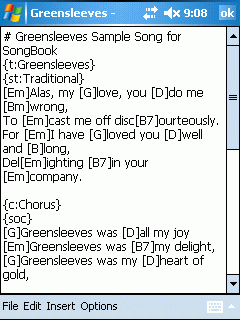
[Em]Alas, my [G]love, you [D]do me [Bm]wrong,
You can find a detailed explanation of the chordpro format as supported by SongBook here.
How To Get Songs Into SongBook
The main song directory can be configured in the options (default is /My Documents/My Songs). Simply copy new songs into this directory or in sub directories of it and select View - Refresh. Sub directories appear as categories in the SongBook category selector.
 Song List
The song list displays title and subtitle of all songs currently in your SongBook database.
You can filter the song list by category, or sort it by title or sub title. Entering a letter will jump to the first title (subtitle) starting with that letter.
Tap-and-hold the stylus on a song to get a pop up menu with further options.
 Song View
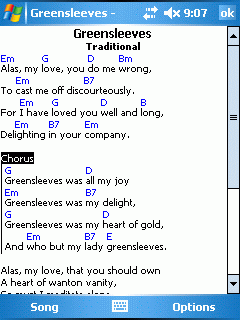
The song view displays the current song with lyrics and chords. Tap on a chord to look up the chord definitions. Chord, lyrics and tab font and color can be changed in Options - Fonts.
You can also transpose the song into a different key by tapping on Song - Transpose.
Use the five-way navigator (if available) to navigate between songs: Left and right go to previous/next song in list, center button returns to the list view (unless auto-scrolling is on).
You can switch off display of chords or lyrics with Options - Hide Chords or Options - Hide Lyrics, respectively.
Tap anywhere on the song (outside a chord) to get a popup menu with more options.
If the Windows Mobile power-off timeout is too short while you view songs, you can delay it by a configural amount of minutes in the SongBook options.
 Full Screen Mode
To make maximum use of screen real-estate, SongBook can display a song in full screen mode where the whole display is used to display the song.
To switch off full screen mode, tap on the song view and uncheck the Full Screen option.
 Auto-Scrolling
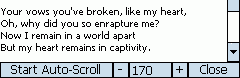
To start automatic scrolling, tap on menu Song - Auto-Scroll. A small panel with accelerator (+) and decelerate (-) buttons and the current tempo will be displayed. You can also increase or decrease speed with the right/left buttons. Press the center button to toggle auto-scroll on/off.
You can pre-define a tempo for a song with the {tempo: } directive.
Automatic power off is disabled during auto-scrolling.
 Transposing
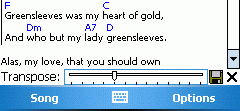
SongBook lets you transpose a song to a different key by automatically adjusting all chords. Adjust the slider to change the tuning in half-tone steps. Tap on the Save button to save the changed song.
Note that if the song contains special chord definitions, these will usually no longer be valid after transposing.
 Song Edit
You can edit songs or add new songs. The Insert menu lets you easily enter the most common chordpro control statements. Select File - Properties to change the category (sub directory below the main song directory) of a song.


 Playlists
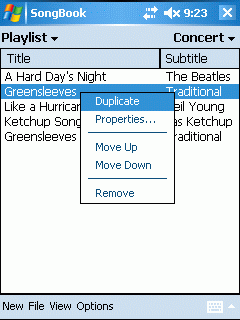
Playlists are collections of songs for a special purpose, e.g. a concert, or training. Playlists contain references to songs (by title/subtitle, independent of their category). You can add songs to multiple playlists, and one song can occur multiple times in one playlist.
Select Playlist from the Category menu to show the Playlist selector on the upper right. You can define new playlists by selecting View - Playlists. To add songs to a playlist, select a song category, tap-and-hold the stylus on a song in the song list, and select Add to Playlist... To remove a song from a playlist select Remove... from the context menu. This will not remove the song from the handheld.
To change the order of songs in a playlist, select Move Up/Move Down from the context menu.
Note: Playlists contain only references (title and subtitle) to the real song. If you remove the song, it is not automatically removed from the playlists.
 Chords and Instruments
SongBook comes with comprehensive chord libraries for guitar, ukulele (C and D tuning) and mandolin. By default, a huge guitar chord library with more than 2,800 chords is installed. To switch to the chord list, select View - Chords from the main song list.
Chords are sorted by base pitch and major/minor. Each chord can have several variations. SongBook knows about identical pitches (e.g. C# = Db).
You can add your own chords or change existing chord definitions.
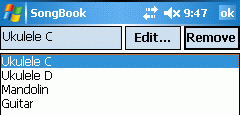 To import additional chord libraries, download and copy the PDB files into your My Documents folder, then select File - Import from the Chord view
To change the currently used instrument, select Options - Instruments. This instrument is used for all chord lookups.
You can also define your own instruments. Just specify the name and the number of strings.
 Chord View
SongBook can display multiple variations of a chord. Chords that are locally defined in a song will be displayed first and have a border around it.
Tap on a chord to modify or delete it.
 Chord Edit
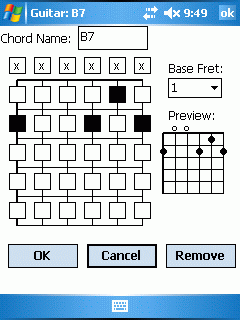
You can change any chord in the chord database. Select the base fret in the dropdown to the right, then tap on the finger spots. If a string does not sound (is muted), select the x above the string.
Shareware License
SongBook is distributed as shareware, i.e. try before you buy. When you continue to use SongBook after an initial trial, you must purchase a license. Licensed users will receive free support and information about program updates.
Feedback
Do you have a song that is not rendered correctly? Is an important chord missing in the chord database? Please let us know.
Version History
- 1.4
- File - Find...
- Performance improvements when handling large song collections
- Tap left/right in song view to go to previous/next song
- Bug fixes - 1.3
- Ability to show/hide chords/lyrics
- Flicker-free prev/next song display
- Option to delay auto-power off while a song is displayed
- Selected playlist is now remembered when switching between song list and playlist
- Bug fixes - 1.2
- Bug-Fixes - 1.1
- Improved support for high-res (VGA) displays
- Keep backlight on during auto-scroll
- Support {tempo: xxx} directive to predefine auto-scroll tempo
- Import/export of Unicode files (i.e. support for non-latin fonts)
- Option for displaying chord names in English, Latin (DO,RE,MI...) or German (B->H) notation
- Bug fixes - 1.0
- First public version for Pocket PC, identical to Palm version 3.0
Special thanks to Kenny Song and Laurence Esterhuizen for their work on the chord databases and numerous valuable suggestions.